
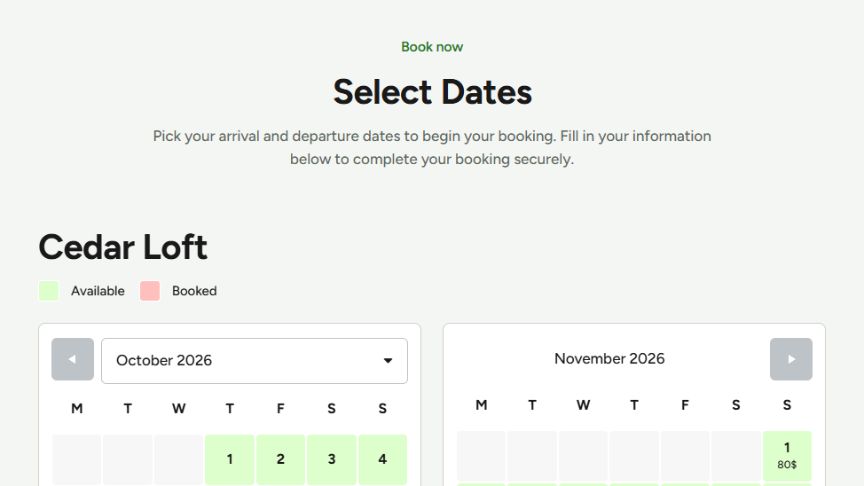
Shows a WP Booking System calendar, a yearly or overview calendar, or the availability search on any page. Requires the WP Booking System plugin: create your calendars and forms there first, and they appear in the dropdowns of this module.
Embed Type
- Single Calendar: one calendar, with an optional booking form.
- Yearly Calendar: a full year of one calendar.
- Overview Calendar: several calendars in one table, to compare availability.
- Search Widget: an availability search with its results. Requires the Search add-on.
The options below match the options of the plugin’s shortcodes. For more details, see the WP Booking System documentation.
Single Calendar
Calendar Settings
- Calendar: the calendar to show.
- Display Legend and Legend Position (Side, Top or Bottom): the legend explains the colors of the calendar.
- Display Dropdown: a month and year dropdown next to the arrows, to jump to another month.
- Week Starts On: the first day of the week.
- Months to Display: how many months are shown at once (1 to 24).
- Language: Auto uses the current language of the website.
- Start Month and Start Year: the first month shown. 0 = the current year.
- Show History: how past dates are shown: as booked, with the default legend item, or with the Booking History Color from the plugin’s settings.
- Show Tooltip: show a tooltip on dates that have one.
- Show Week Numbers, Highlight Today.
- Jump Switch: with several months shown, the arrows move by that many months instead of one.
- Show Prices: show the price on each date, if pricing is enabled in WP Booking System.
Form Settings
- Form: the booking form, or No Form for a calendar only.
- Form Position: Bottom (under the calendar) or Side.
- Automatically Block Dates: when a booking is made, its dates automatically change to the “Booked” legend item.
- Selection Type: Date Range or Single Day.
- Selection Style: Normal highlights whole days; Split shows the first and last day as half days (check-in and check-out).
- Show Date Selection: also shows the selected dates in the form.
Yearly Calendar
The same calendar and form settings as the single calendar, for a full year, plus Display Calendar Title. Choose the year in Start Year (0 = the current year).
Overview Calendar
- Display: All Calendars or Selected Calendars (then choose them in Calendars).
- Display Legend, Legend Position, Start Year, Start Month, Show History, Display Tooltips and Language, as above.
- Show Weekday Abbreviations: show the day names above the dates.
Search Widget
- Calendars: the calendars to search through. Leave it empty to search all of them.
- Language, Selection Type and Minimum Stay (the minimum number of nights).
- Layout: show the results as a List or a Grid.
- Show Featured Image and Show Starting Price on each result.
- Show Results on Load: show all calendars before visitors search.
- Results per Page: how many results are shown per page.
Use a page with a Search Widget as the results page of the hero search: enter its URL in the Redirect URL of the Hero Banner‘s Availability Search.
Headings & Options
The Headings & Options tab adds an optional heading above the module and sets its background. These options are the same on most modules, see Headings & Options.