
Your contact details next to a form, with an optional map below.
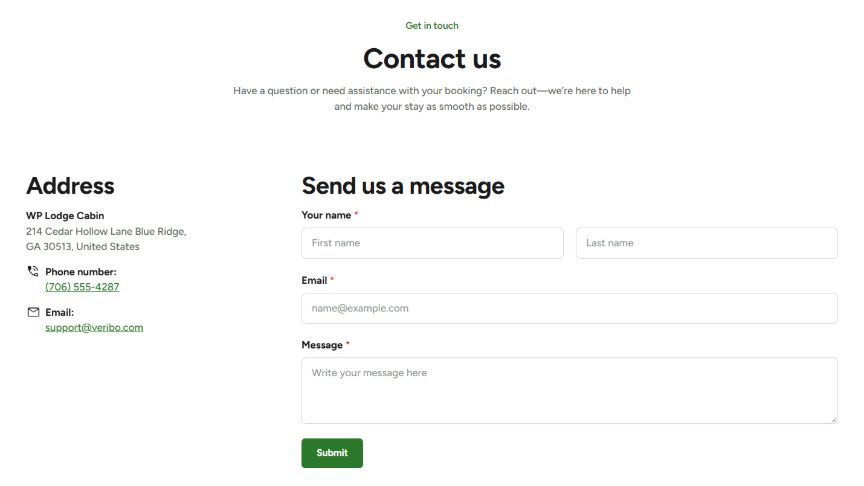
Contact Info
- Sidebar Title: the title above the contact details, e.g. “Get in touch”.
- Contact Items: one row per detail:
- Type: Address, Phone or Email (each with its own icon), Custom (upload your own icon) or Google Icon (type the icon name).
- Label: e.g. “Phone number:”.
- Text: the detail itself. Line breaks are allowed.
- Link: optional. For a phone, enter only the number; for an email, only the address. For other items, enter a normal URL (e.g. a Google Maps link).
- Open in New Tab: open the link in a new tab.
Form
- Form Title: e.g. “Enquiry form”.
- Form Shortcode: paste the shortcode of your form, e.g.
[contact-form-7 id="123"]or
The theme styles the forms of Contact Form 7, Gravity Forms, WPForms, Ninja Forms, Fluent Forms, Formidable Forms and Forminator to match your website.
Map
Map Embed: paste the Google Maps embed code. In Google Maps, search for your address, click on Share → Embed a map and copy the HTML.
Headings & Options
The Headings & Options tab adds an optional heading above the module and sets its background. These options are the same on most modules, see Headings & Options.